Managing Wi-Fi configurations
Related Video: Wi-Fi Configuration
The process for creating basic Wi-Fi configurations in KACE Cloud is the same for all operating systems; however, there are some variations in accepted EAP types for enterprise security.
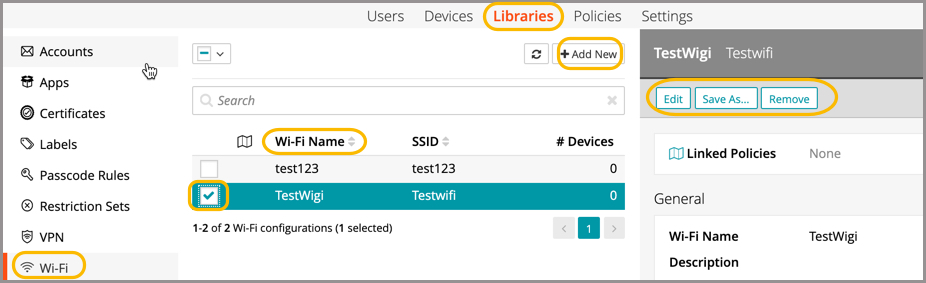
When working in the Wi-Fi Library (shown below): An admin can view details for a specific Wi-Fi configuration; edit, save as, and delete; view all devices with a specific Wi-Fi configuration installed, as well as add a new Wi-Fi configuration to the library. See Wi-Fi step-by-step instructions.
During the + Add New process, the accepted EAP types for each operating system are denoted by the OS icon.
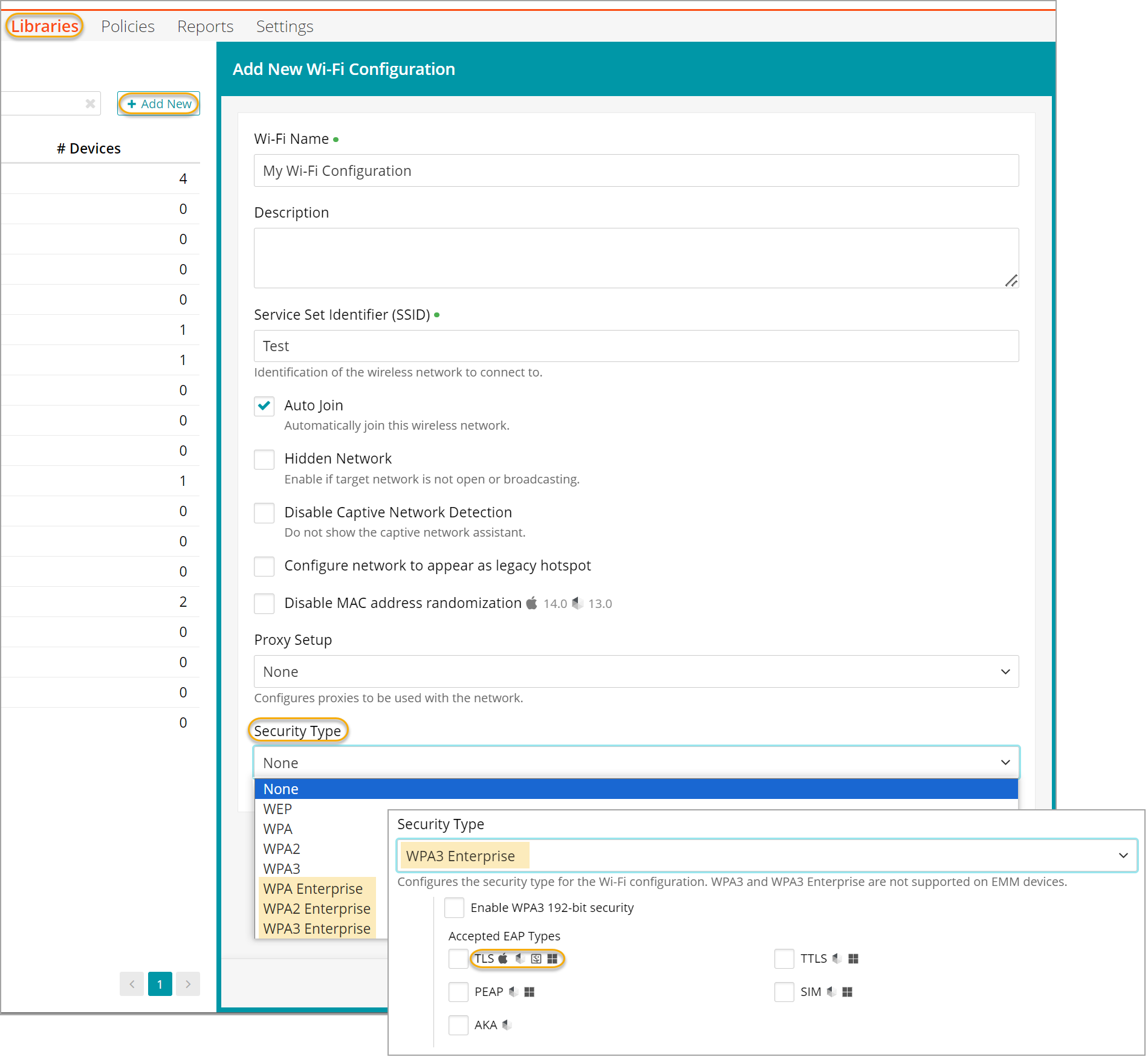
For Windows, only one EAP type selection can be applied. For Android, iOS, and macOS, multiple selections are possible.
|
|
IMPORTANT: When configuring Wi-Fi networks using WPA2 Enterprise or WPA3 Enterprise networks for Android devices, the Trusted Certificates and Trusted Servers fields are required:
These requirements are enforced by the Android operating system and are essential for successful deployment on Android 11+ devices. |

Add to device
- Select the Devices tab in top navigation.
- Select one or more device names from the list.
- In the right panel, choose Wi-Fi.
- Click Add New.
- Select a Wi-Fi configuration from the Library list.
- Click Install on Device.
Add to device using policies
- Select the Policies tab in top navigation.
- Complete one of the following steps:
- To create a policy, click Add New.
- To edit an existing policy, click the policy to open the policy details.
- In the Applies To section, select one or more labels associated with target devices. For more details about labels, see Using labels to group similar items.
- In the right pane, in the Resources tab, click Add Resources to open the drop-down list, and then click Wi-Fi to open a dialog.
- Slide the Link toggle to link/unlink the Wi-Fi configuration.
- To link the Wi-Fi to policy, slide the Link toggle to right. The color of the toggle changes to green indicating the resource is linked.
- To unlink a previously linked Wi-Fi, slide the Link toggle to left. The color of the toggle changes to red indicating the resource is unlinked.
- (Optional) In the Options column, click the icon to open Resource Options dialog. Select one of the following Compliance Type:
- Include - Select this option to include the resource when determining the compliance status.

NOTE: By default, all the Resources in a policy are included in compliance checks.
- Exclude - Select this option to exclude the Resource when determining the compliance status.
- Include - Select this option to include the resource when determining the compliance status.
- Click Add Resources to associate the item to the policy. You can view the Wi-Fi configuration in the Resources pane.
- Click Push Resource to deploy the added Wi-Fi configuration to the target devices or users.
For more information about policies, see Using policies to manage device configurations.
Remove from device
- Select the Devices tab in top navigation.
- Select one or more device names from the list.
- In the right panel, choose Wi-Fi.
- Select one or more Wi-Fi configurations from the list.
- Click Remove, then Confirm Remove.
Add to Library
- Select the Libraries tab in top navigation.
- Click the Wi-Fi icon.
- Click Add New.
- Name the configuration, add an SSID, then select proxy setup and security type.
- Click Save.
Edit in Library
- Select the Libraries tab in top navigation.
- Click the Wi-Fi icon.
- Select a Wi-Fi configuration from the list.
- In the right panel, click Edit.
- Update fields and selections, then click Save.
Troubleshooting Wi-Fi configuration issues on Windows devices
In some cases, KACE Cloud can runs into issues preventing you from applying a Wi-Fi configuration to one or more Windows devices. This can happen, for example, when Wi-Fi is not enabled on device. The Device History reports such errors, such as: Error: 507: Atomic failed.
You can obtain more information from the Windows Event Viewer on the target device, under Microsoft-Windows-DeviceManagement-Enterprise-Diagnostics-Provider/Admin.
For instance: MDM ConfigurationManager: Command failure status. Configuration Source ID: (C89EE653-52C7-422A-8AD0-06B786634FF0), Enrollment Name: (MDMFull), Provider Name: (WiFi), Command Type: (Add: from Replace or Add), CSP URI: (./Vendor/MSFT/WiFi/Profile/Hummingbird/WlanXml), Result: (The system cannot find the file specified.).